Week 4: Full-Stack Development
Goals
- Develop a web app that connects React on the frontend to Python (FastAPI) in the backend.
- Use an LLM API to create a custom chatbot.
- Deploy the web app to the cloud.
This week, we’re going to recreate a simple ChatGPT-like app that allows you to chat with a real LLM, then deploy it to the cloud for anyone to use!
Here’s what the app will look like once it’s complete:
Get the GitHub Student pack
- Go to https://education.github.com/pack and apply for the student developer pack. This can often take a few tries, so start early.
- We will be using https://www.digitalocean.com/ later on for compute, and the Student pack gives you $200 in credits.
- Don’t worry if you can’t get verified since you’re only going to put this app online for a week, even if you don’t get credits for DigitalOcean it will cost less than $1 out of pocket. You can also use AWS, which has $100 in credits for new users. For our purposes, both DigitalOcean and AWS will work very similarly.
Getting Started with the Chat App
- Fork https://github.com/dstl-lab/dstl-onboarding-chat onto your personal GitHub account and
git cloneyour fork. -
Install the dependencies for the backend and frontend.
cd backend uv sync cd ../frontend npm install cd .. # to get back to the root directory of the project -
Run the backend server. This will start the backend server at
http://localhost:8100.# in the project root directory make backendThen, verify that the backend server is running:
curl http://127.0.0.1:8100/conversations/You should see a JSON response like the following (but with fewer spaces and different dates):
[ { "title": "Welcome Chat", "created_at": "2025-11-24T14:36:16.369277", "id": 1 }, { "title": "Python Help", "created_at": "2025-11-24T14:36:16.369887", "id": 2 } ] -
Run the frontend server. This will start the frontend server at
http://localhost:8101.# in the project root directory make frontend -
Verify that the app is working by visiting
http://localhost:8101in your browser. - Now, read the backend code in
backend/src/backendand the frontend code infrontend/src/App.tsxand understand how it works.
Now, check your knowledge:
- What framework does the backend use? Why use this over another framework, e.g. Flask?
- How does styling work in the frontend? What CSS framework is used?
- What is the relationship between the
ConversationandMessagemodels inbackend/src/backend/models.py?- Step through all the code that runs when you run
curl http://127.0.0.1:8100/conversations/- What is a
Makefileand why is it useful?
Implementing Features
Now, following the guidelines in the README of the project, implement the following features (full descriptions in the README):
- When the user clicks an existing conversation in the sidebar, the messages in that conversation should be displayed in the main content area.
- When the user clicks the “New Chat” button and sends a message, a new conversation should be created and the messages in that conversation should be displayed in the main content area.
- Hook the backend up with the live NRP LLM API to generate responses for the user’s messages.
- Render user and LLM messages using Markdown.
After completing this, make a PR to the original repo and share it with someone on your team.
Now, check your knowledge:
- (Note to Sam: Give 1 point for each PR.)
- (Note to DSTL: Sam will open your PRs and ask you questions about your code. Be ready to justify your code choices.)
- What does
session.commit()do? What happens if we forget to call it?- You probably used
awaita lot in the frontend code. What does it do? What happens if you forget to use it?- You also probably noticed that some user inputs take a while to process, e.g. try typing in:
Why do we use the pandas library?. What is the limiting factor in the response time?- Notice that we send requests to the LLM on the backend. In fact, it’s totally viable to send requests to the LLM on the frontend, rather than the backend. What would be the advantages and disadvantages of doing this?
- In the Flask onboarding app, we wrote SQL code directly in the app.py file, but this app doesn’t do that. Why not?
Launching a Virtual Machine in the Cloud
- Make a DigitalOcean account if you don’t already have one: https://cloud.digitalocean.com/registrations/new
-
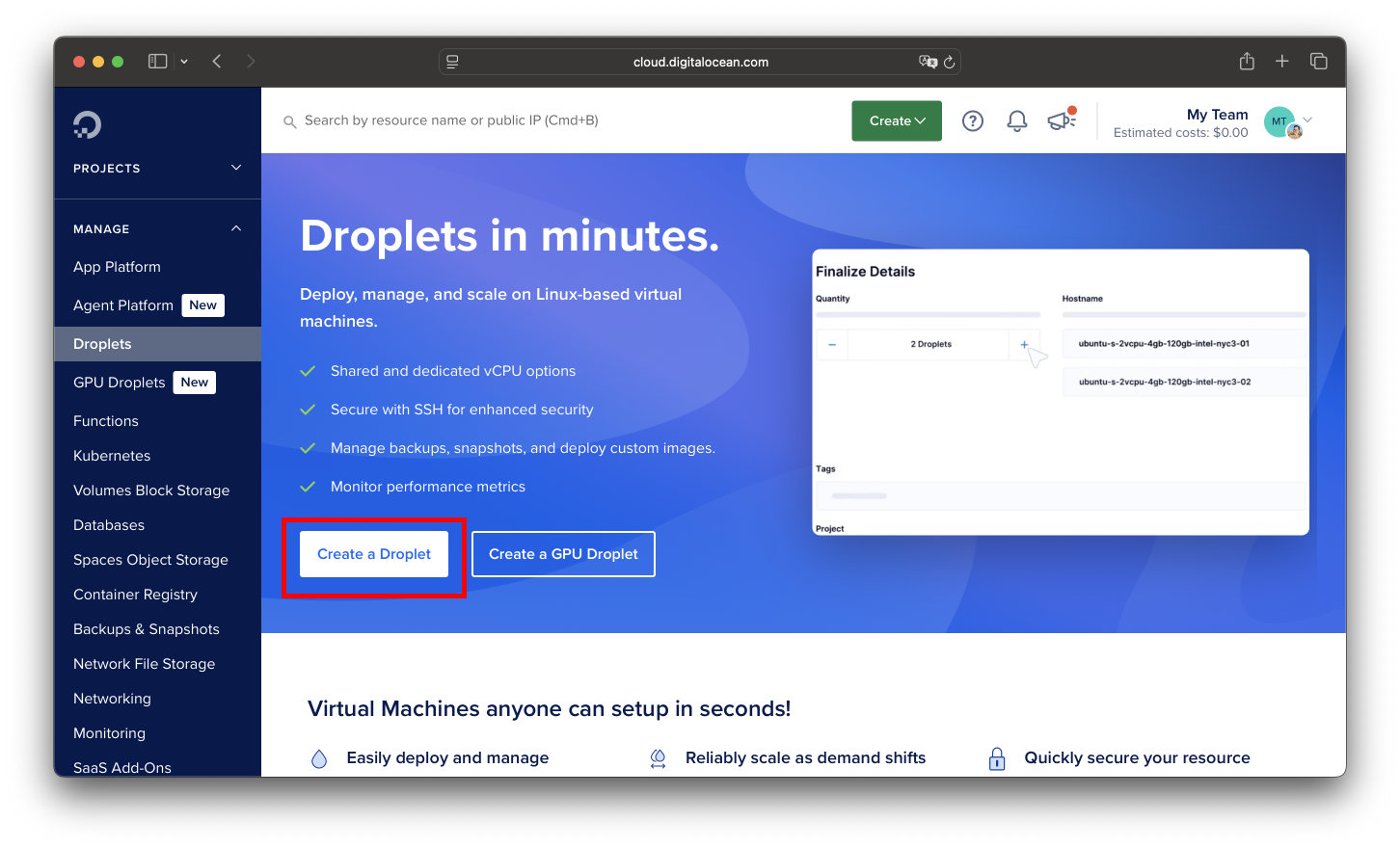
Click on Droplets in the left-hand sidebar. Click Create Droplet.
-
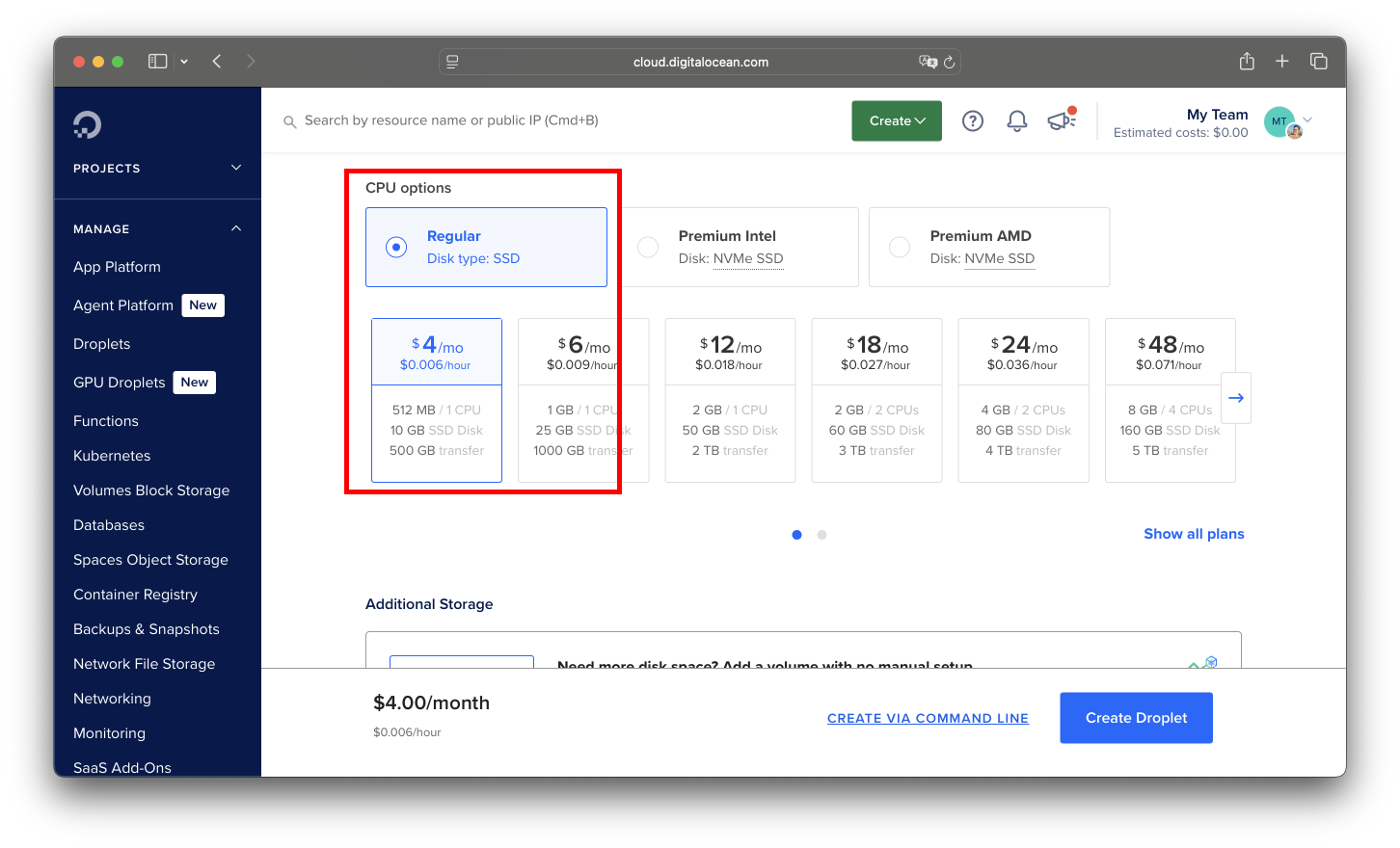
Leave options as defaults (SF region, Ubuntu 24.04, Basic CPU), but when you get to CPU options, make sure to select the Regular CPU, $4 / month option to minimize cost.
-
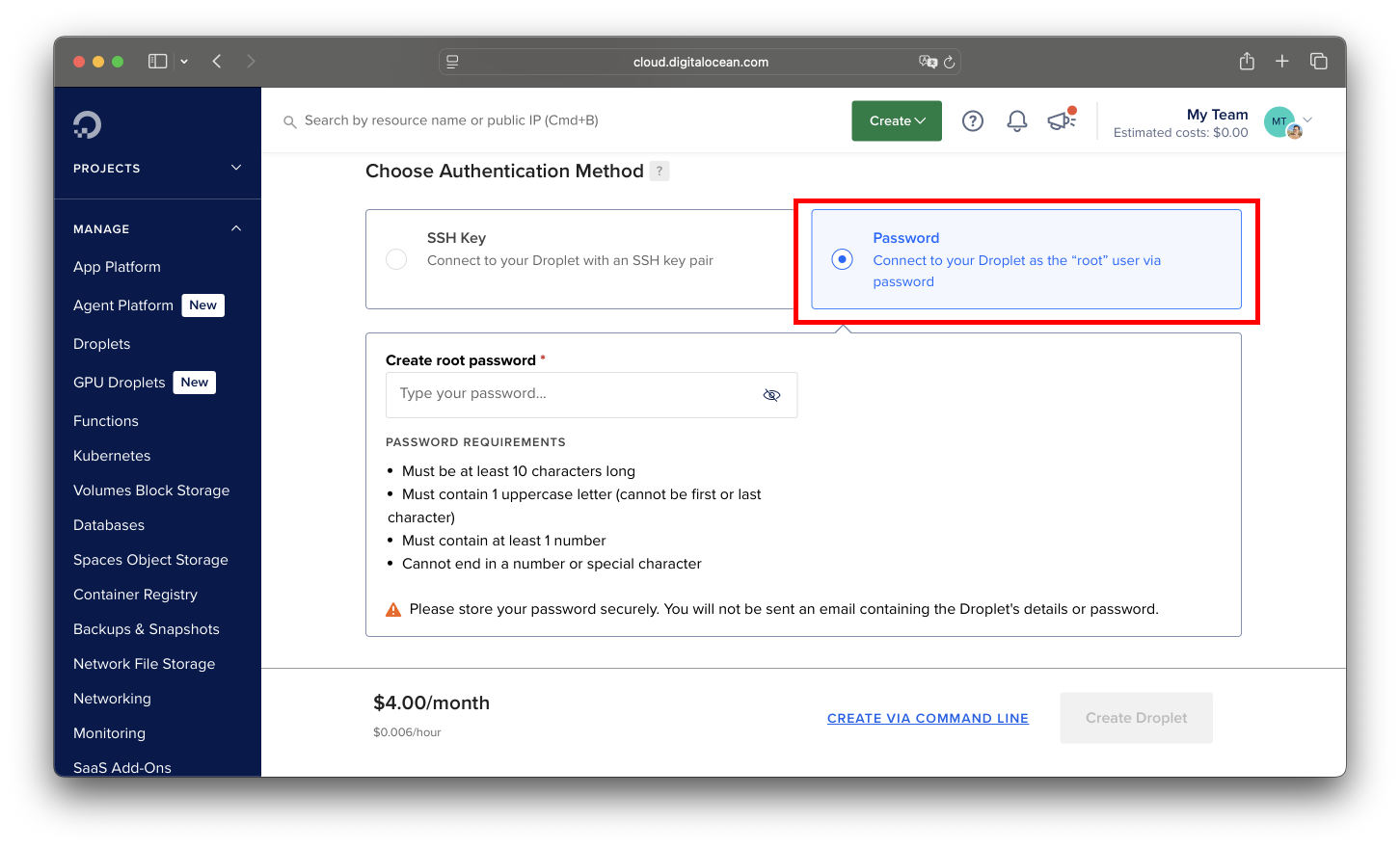
Choose the Password authentication method and enter in a strong password (if you already know how to configure SSH, feel free to do that instead.)
-
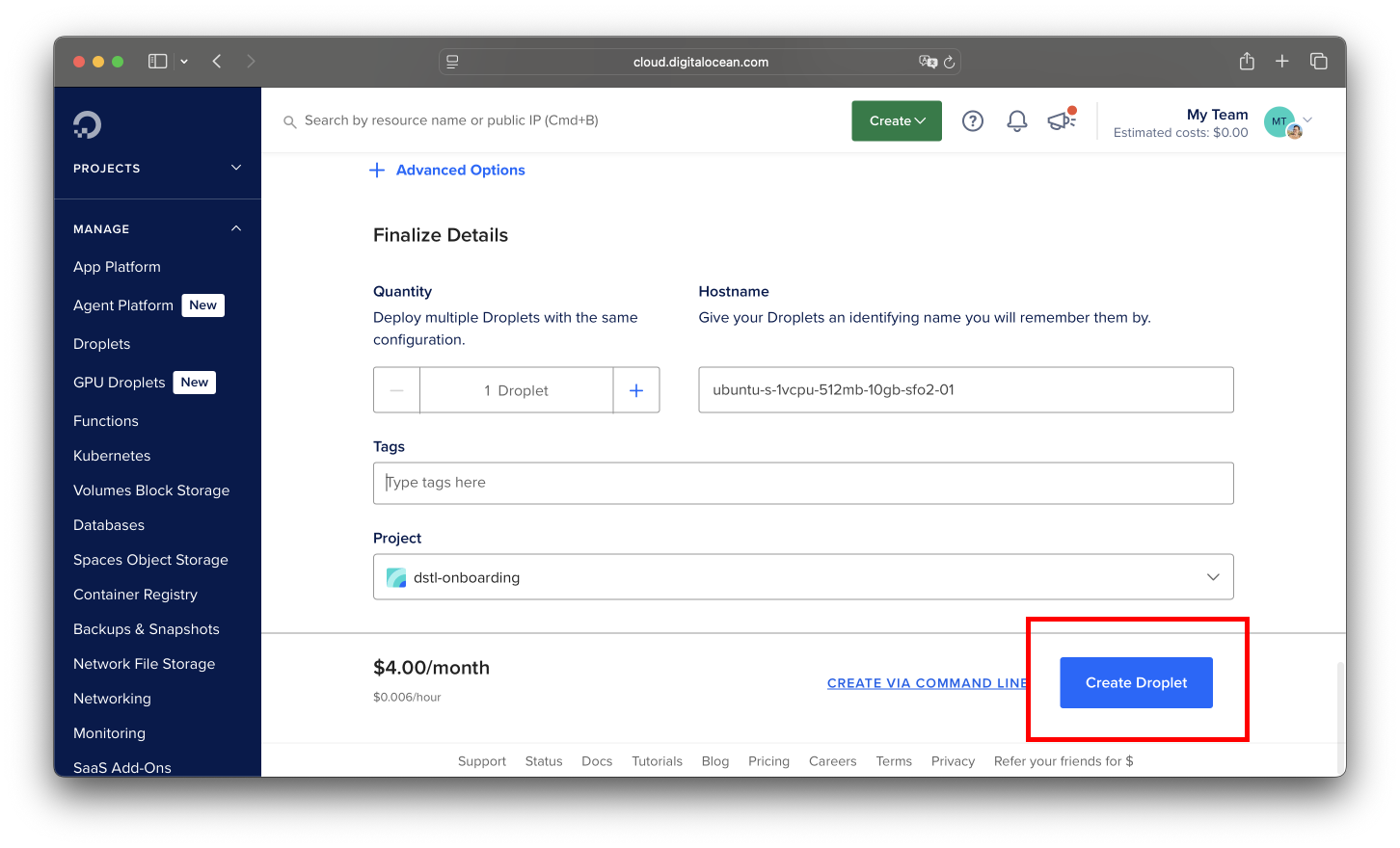
Leave the rest as default, then click Create Droplet.
- Congrats! You now have a virtual machine (VM) running in a San Francisco datacenter that is on 24/7 (well, unless the datacenter loses power). You will be charged money (or hopefully credits) as long as this machine is running, so make sure to turn it off once we’ve gone over your work.
-
Now let’s connect to your VM. Click on your VM in the droplets list. Copy the public ipv4 to your clipboard. Then, in your terminal, run this command:
ssh root@{ip}Where
{ip}is replaced with your IP address. For example, when Sam created his droplet, his IP was 138.197.215.201, so he would run:ssh root@138.197.215.201If all goes well, your terminal should ask whether you want to continue connecting (select “yes”), then ask for your password. Once entered, you should see yourself in a terminal that looks something like:
root@ubuntu-s-1vcpu-512mb-10gb-sfo2-01:~#Congrats! You’re now logged into your VM. All subsequent commands will run on the VM’s command line, not your own laptop. For example, if you really wanted to mine Bitcoin, you could launch a Bitcoin mining command in your VM and turn off your laptop, and the command would in theory keep running in the background. In practice however, mining Bitcoin using VMs is frowned upon and will probably get your machine shut down pretty quickly. But it is totally okay to run web servers on VMs, which is what we’ll do next!
Preparing your app for production
-
If your app is anything like mine, your frontend probably has a bunch of
fetch()calls tolocalhost:8100. Unfortunately if we run this code on the VM, your browser will make requests to your local laptop (not the VM). Instead, we need frontend requests in production to make requests to{ip}:8100. For example, Sam’s droplet has IP 138.197.215.201, so his frontend should make requests tohttp://138.197.215.201:8100.Note:
For real production apps, we would also buy a domain (e.g. on namecheap) and point it to the IP address of the VM. For example, as of this writing we could buy the name
dstl-onboarding-chat.comfor $12 a year, and if we configured that to point to the IP138.197.215.201, then we could visitdstl-onboarding-chat.comin our web browsers instead of the random IP address. But for our purposes, we’ll just use the IP address.The recommended way to handle this is to create another .env file for the frontend that sets an
API_BASE_URLenvironment variable. In development, this should belocalhost:8100. In production, it should be the IP address of the VM. Then, in the frontend code, we can use theAPI_BASE_URLenvironment variable to make requests to the backend rather than hardcodinglocalhost:8100.Go ahead and make this change now. Vite has a built-in way to load environment variables from a .env file, so you should look up how to do that (unlike the Python backend, you don’t need to install any new packages). Hint: you actually need to define an env variable called
VITE_API_BASE_URLrather thanAPI_BASE_URL.Then, restart your frontend server with
npm run devand confirm that it still works. -
Now, let’s simulate a production build locally. Just for now, set the
VITE_API_BASE_URLenvironment variable to the IP address of the VM. (You’ll have to change this back later if you want to test the app locally.)Run
npm run buildin thefrontendfolder and confirm that the build output is in thedistfolder. These are the plain HTML/CSS/JS files that will be served by your web server. You can test this by running a simple web server in thedistfolder withuv run python -m http.server 8101. Then, open your browser tohttp://localhost:8101and confirm that the app still loads. In the network tab, you should see a request to the IP address of the VM (which fails, since we aren’t running any code on the VM yet). -
But now we have a strategy for running the app in production: we can copy the code over to the VM, start the backend server, start a separate web server for the frontend, and point the frontend to the backend server. As it turns out, we can simplify this by letting our backend server also serve the built frontend files.
Read https://fastapi.tiangolo.com/tutorial/static-files/ and implement it in your backend by configuring your FastAPI app to serve the static files from a folder called
staticon the/approute. ONLY serve this folder in production, not in development. This means you need, you guessed it, another variable in your .env file. It’s customary to call this variableENVIRONMENTand set it toproductionin production anddevelopmentin development. (For JS, Vite already makes aNODE_ENVvariable available.)Now, test this by copy-pasting your
frontend/distfolder into thebackend/src/backend/staticfolder. Then, STOP your frontend server, and ONLY run your backend server. Check that navigating tohttp://localhost:8100/app/index.htmlloads the frontend. Now, we’re finally ready to deploy our app to the cloud!Make sure to commit and push your changes to GitHub before moving on.
Deploying to the Cloud
-
sshinto your VM, andgit cloneyour repository. -
Note that your VM doesn’t come with
uvornodeinstalled, so let’s install them now.# Download and install nvm: curl -o- https://raw.githubusercontent.com/nvm-sh/nvm/v0.40.3/install.sh | bash \. "$HOME/.nvm/nvm.sh" # Download and install Node.js: nvm install 24 # Verify the Node.js version: node -v # Should print "v24.11.1". # Verify npm version: npm -v # Should print "11.6.2". curl -LsSf https://astral.sh/uv/install.sh | sh source $HOME/.local/bin/env # Verify uv version: uv --version # Should print "0.9.11". -
Install the dependencies for your backend and frontend.
cd backend uv sync cd ../frontend npm install cd .. # to get back to the root directory of the project -
Configure the .env files for your backend and frontend.
cp backend/.env.example backend/.env nano backend/.env # edit this to set the NRP key and ENVIRONMENT cp frontend/.env.example frontend/.env # edit this to set VITE_API_BASE_URL to the IP address of the VM on port # 8100, e.g. `http://138.197.215.201:8100` nano frontend/.env -
Build the frontend.
cd frontend npm run build cd .. -
Copy the
distfolder to thebackend/src/backend/staticfolder.mkdir -p backend/src/backend/static cp -r frontend/dist/* backend/src/backend/static/ -
Start the backend server.
cd backend uv run uvicorn backend.main:app --reload --port 8100 --host 0.0.0.0 -
Your app should now be running at
http://{ip}:8100/app/index.html! For example, Sam’s app was running athttp://138.197.215.201:8100/app/index.html. You should now share your URL with someone else on your team and ask them to check it out. - Congrats! You’ve deployed your app to the cloud!
- Now, read pages 1-5 of https://github.com/dstl-lab/onboarding/blob/main/resources/startup-eng-lecture3-linux-ssjs.pdf to understand some background on why we just went through all of this work.
Now, check your knowledge:
- Once your app is deployed, leave a follow-up comment on your PR with the URL of your app. (Sam: Give 1 point for each working URL.)
- What is a virtual machine and why is called “virtual”?
- What happens if you close your terminal window that was running
uv run uvicorn? What would you need to do to keep the server running?- What if we update the app backend code and want to redeploy our production web app? What would we need to do?
- What if we update the app frontend code and want to redeploy our production web app? What would we need to do?
- What if we destroyed our current VM and started a new one? What would we need to do to redeploy our production web app? (The answer to this question is why in real life we’ll often want to use Docker instead of running commands directly on the VM.)
- Notice that our URLs always needed to include a port (
8100). Regular URLs (likegoogle.com) obviously don’t need a port. If we didn’t want users to specify the port in the URL, what could we do?- For the production backend, we needed to specify
--host 0.0.0.0. Why is this important and what would happen if we didn’t specify it?